
LandCruiser 79 Series Seat Covers: A Comprehensive Buyer's Guide
- Written by: Times Media
Key Takeaways
- The best cover depends on how the vehicle works, so match the material to your daily use, whether that is a worksite, a farm or a touring rig.
- Canvas suits heavy abrasion and tools, while neoprene suits wet, sweaty and muddy conditions.
- Tailored covers for your exact cab style and seat layout fit better than universal covers.
- Check airbag compatibility, seatbelt access, cleaning needs and the supplier's fitting support before you order.
Introduction
The 79 Series Landcruiser is a working vehicle first. It carries tradies and tools to the worksite, hauls farmers across paddocks and takes tourists to the end of long tracks. Its seats take punishment that most passenger car interiors never see, from steel-capped boots to wet dogs and hot, dusty days.
Seat covers are the simplest way to protect that interior. This buyer's guide explains how to choose the best seat covers for landcruiser 79 series use. It covers material, fit, safety, cleaning and the questions to ask a supplier, so you buy once and keep the cab in good shape.
Start with how the vehicle works
Before comparing products, think about what the cab actually goes through. Choosing seat covers for LandCruiser 79 Series vehicles starts with an honest look at your use. A tradie in and out of the cab all day needs something different from a family that tows a van each holiday or a station owner who spends long days in the heat.
Write a quick list of the main threats. Dirt, grease, sweat, rain, spilled drinks, sharp tools, dog claws and sun all wear seats down in different ways. Note which seats get the most use, and whether passengers are mostly adults, children or workmates in boots.
Think about the climate, too. In hot regions, breathable materials help, while wet coastal areas favour fabrics that resist moisture and dry quickly. A cover that suits one region may be poor in another.
Canvas or neoprene
Most buyers choose between these two materials.
Canvas is a heavy woven fabric known for toughness. It resists abrasion from boots, tools and belts, and it handles daily work without wearing through. Treated canvas can repel water and wipes clean easily, which suits tradies, farmers and mine sites.
Neoprene is a flexible, wetsuit-style material. It resists water and sweat, feels soft and gives a snug fit, so it suits beach trips, fishing, surfing and humid conditions. It is comfortable in daily use, though sharp tools and heavy abrasion can damage it over time.
Other fabrics, such as mesh and leather-look, exist as well. They can suit specific needs, but canvas and neoprene cover most uses of this vehicle.
Tailored fit for the best seat covers for landcruiser 79 series
Fit matters more than most buyers expect.
Universal covers are cut to a generic size and rely on elastic and straps. They tend to bunch, slide and leave gaps, and they may block seat controls and seatbelt buckles. In a working vehicle, loose covers also catch on clothing and wear quickly at the edges.
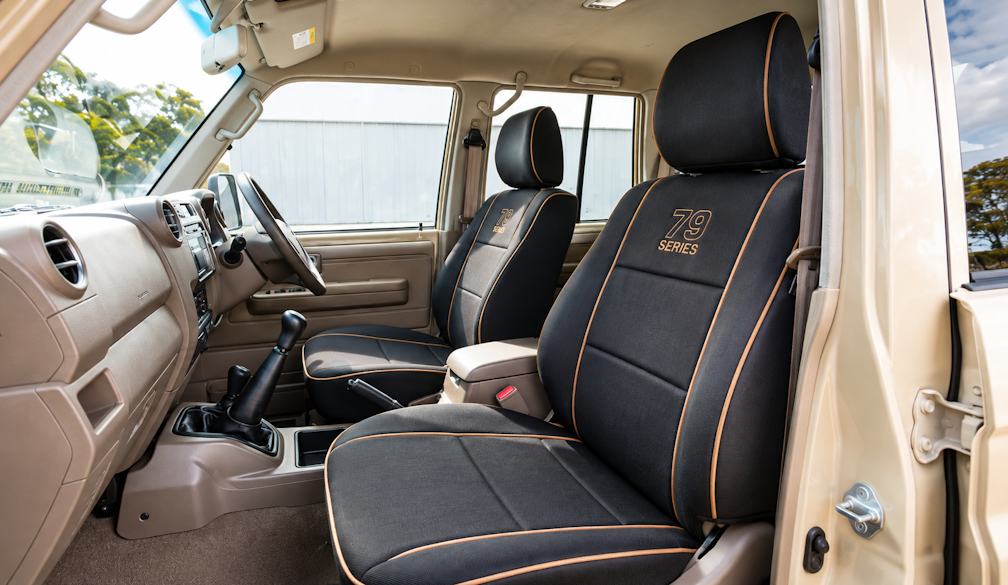
Tailored covers follow the exact shape of the seat. They hold their position, protect the bolsters where wear is worst and leave controls accessible. The collection page describes covers for the dual cab, so confirm that the set you choose suits your cab style and seat layout.
Check the details. Look at whether the set covers the front bucket seats, the rear bench and any split or folding sections. Confirm that headrests, armrests and seatbelt buckles are accounted for. If the vehicle has been modified, tell the supplier.
Check airbags and safety
Safety should never be traded for looks.
Many modern seats carry side airbags, and covers must allow those airbags to deploy as designed. Check that the maker states airbag compatibility for your vehicle, and avoid any cover that is not designed for it. If your vehicle has older seats without airbags, the same attention to fit still applies.
Seatbelts must remain accessible and work freely. Check that buckles, anchors and sensors are not covered or restricted. Look at how the cover affects seat adjustment, and make sure you can still move and tilt the seat as normal.
If you carry children, check that covers do not interfere with child seat anchors, and follow the child seat maker's instructions.
Think about everyday wear
Daily wear is where covers prove their worth.
Look at the stitching and seams. Strong, doubled stitching in high-stress areas, such as bolsters and edges, lasts longer. Check zips, hooks and straps, since these are common failure points. A tough cover in the right places stands up to years of climbing in and out.
Think about colour and pattern. Dark colours hide grease and dirt, while light colours show every mark but stay cooler in the sun. Plain finishes suit work, while patterned or contrast finishes give more style.
Consider comfort. Thick materials can feel warm in summer and stiff in winter, and some surfaces feel sticky when hot. If you can, try a sample before you commit.
Plan for cleaning
A cover that is easy to clean saves time.
Wipe-clean surfaces handle everyday mud, dust and spills. Vacuum regularly, particularly in seams and creases. Treat stains straight away, using mild cleaners and avoiding harsh chemicals that can damage the fabric or its coating.
Check whether the covers can be removed for washing, and follow the maker's instructions. Dry them thoroughly in a shaded, ventilated spot before refitting, since trapped moisture causes odour and mould.
In a work vehicle, a quick wipe at the end of the day prevents grime from building up. It takes a minute, and it keeps the cab fresher.
Installation and support
Even good covers need to be fitted properly.
Tailored covers usually fit with straps, hooks and fasteners, and installation takes an hour or two with basic tools. Read the instructions first, lay out the parts and fit the front seats before the rear. Check for creases, gaps and tight spots, and recheck the fasteners after the first few drives.
Ask what support the supplier provides. Companies like Razorback 4x4 include detailed instructions with their covers, which is a useful sign. Look for clear guides, helpful staff and a sensible returns policy. If something does not fit, you want a supplier who will help.
Budget and value
Price and value are different things.
A cheap cover that fails in a year costs more than a better one that lasts a decade. Consider the cost per year of use, and think about the value of the interior you are protecting. In a working vehicle, durable covers often pay for themselves through lower repair and trim costs at resale.
Compare what is included in the set. Check the number of seats covered, whether headrests are included, and what accessories come with it. Ask about warranty and care requirements.
Making your choice
Start with how the vehicle works, then choose canvas or neoprene to suit. Insist on a tailored fit for your cab, check airbags and seatbelts and think about cleaning and support. The best seat covers for landcruiser 79 Series use are the ones that match your daily life, fit properly and stay tidy for years.
Frequently asked questions
Is canvas or neoprene better for a work vehicle?
Canvas suits heavy abrasion, tools and boots, while neoprene suits wet, hot and muddy conditions. Choose based on your main use.
Are tailored covers worth the extra cost?
Usually. They fit your seats exactly, stay in place, protect the high-wear areas and leave controls and airbags accessible.
How do I know a cover will fit my cab?
Check the cab style, seat layout and trim against the supplier's description, and send photos if you are unsure.