
Harrison.ai launches world leading AI model to transform healthcare
- Written by: The Times
Healthcare AI technology company, Harrison.ai, today announced the launch of Harrison.rad.1, a radiology-specific vision language model. It represents a major breakthrough in applying AI to tackle the global healthcare challenge. The model is now being made accessible to selected industry partners, healthcare professionals, and regulators around the world to spark collective conversations about the safe, responsible, and ethical use of AI to revolutionise healthcare access and capability, and to improve patient outcomes.
Robyn Denholm, Harrison.ai Board Director, said “The Harrison.rad.1 model is transformative and an exciting next step for the company. Harrison.ai is delivering on the promise of helping solve real-world problems more effectively and reliably and helping to save lives.”
Harrison.rad.1 is a radiology-specific vision language model that is dialogue-based. It can perform a variety of functions including open-ended chat related to X-ray images, detecting and localising radiological findings, and generating reports, providing longitudinal reasoning based on clinical history and patient context. Clinical safety and accuracy are the model’s key priorities.
The Harrison.ai team have already proven their responsible approach to AI development. Their existing radiology solution Annalise.ai has been cleared for clinical use in over 40 countries and is commercially deployed in healthcare organisations globally, impacting millions of lives annually. With the same dedication to rigour and care, the Harrison.rad.1 model will undergo further open and competitive evaluations by world-leading professionals.
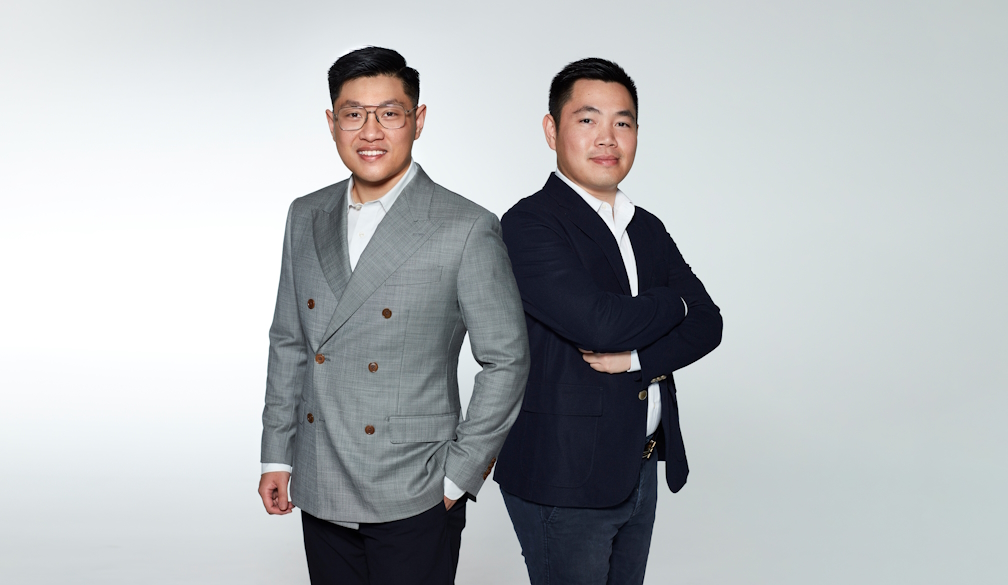
Dr. Aengus Tran, co-founder and CEO of Harrison.ai said, “AI’s promise rests on its foundations – the quality of the data, rigour of its modelling and its ethical development and use. Based on these parameters, the Harrison.rad.1 model is groundbreaking.”
This model is unlike existing generative AI models, which are functionally generic and predominantly trained on general and open-source data. Harrison.rad.1 has been trained on real-world, diverse and proprietary clinical data, comprising of millions of images, radiology studies and reports. The dataset is further annotated at scale by a large team of medical specialists to provide Harrison.rad.1 with clinically accurate training signals. This makes it the most capable specialised vision language model to date in radiology.
The critical and highly regulated nature of healthcare has limited the application of other AI models to date. However, this new model and its applications are qualitatively different and open up a whole new conversation in radiology innovation and patient care, and the potential for regulatory assurance.
Dr. Aengus Tran noted, “We are already excited by the performance of the model to date. It outperforms major LLMs in the Royal College of Radiologists’ (FRCR) 2B exam by approximately 2x. The launch of this model and our plan to engage in further open and competitive evaluation by professionals underscores our commitment to responsible AI development.”
“Harrison.ai is committed to being a leading global voice in helping inform and contribute to an important conversation on the future of AI in healthcare. This is why we are making Harrison.rad.1 accessible to researchers, industry partners, regulators and others in the community to begin this conversation today”.
Harrison.rad.1 has demonstrated remarkable performance, excelling in radiology examinations designed for human radiologists and outperforming other foundational models in benchmarks. Specifically, it surpasses other foundational models on the challenging Fellowship of the Royal College of Radiologists (FRCR) 2B Rapids examination – an exam that only 40-59% of human radiologists manage to pass on their first attempt. When reattempted within a year of passing, radiologists score an average of 50.88 out of 60*. Harrison.rad.1 performed on par with accredited and experienced radiologists at 51.4 out of 60, while other competing models such as OpenAI’s GPT-4o, Anthropic’s Claude-3.5-sonnet, Google’s Gemini-1.5 Pro and Microsoft’s LLaVA-Med scored below 30 on average**.
Additionally, when assessing Harrison.rad.1 using the VQA-Rad benchmark, a dataset of clinically generated visual questions and answers on radiological images, Harrison.rad.1 achieved an impressive 82% accuracy on closed questions, outperforming other leading foundational models. Similarly, when evaluated on RadBench, a comprehensive and clinically relevant open-source dataset developed by Harrison.ai, the model achieved an accuracy of 73%, the highest among its peers**.
Building on the efficacy, accuracy, and effectiveness that has been achieved through Harrison’s existing Annalise line of products, Harrison.ai wants to collaborate to speed up the development of further AI products in healthcare to help expand capacity and improve patient outcomes.
Further details on Harrison.rad.1’s benchmarking against the human examinations and other vision language models can be found in the following technical blog here: https://harrison.ai/harrison-